
PowerPoint Backgrounds (Everything You Need to Get Started)
Free Microsoft PowerPoint Slide Backgrounds
Don’t forget that you have many free PowerPoint background options from Microsoft Office.
When you start a new presentation, you will a wide variety of presentation styles to choose from (as pictured below).
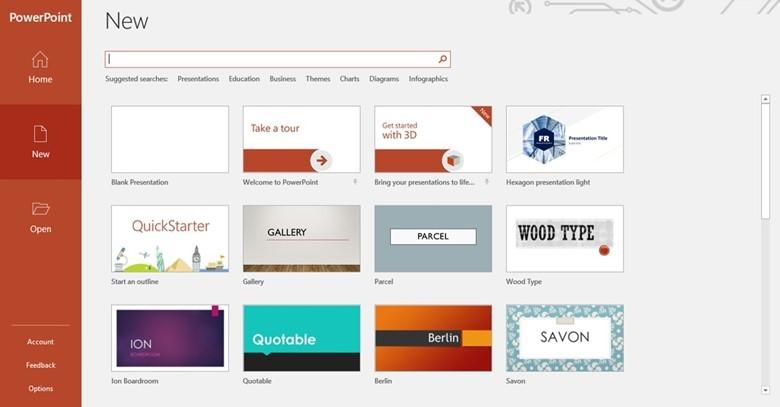
If you’re not satisfied with one of these default templates, you can search for other free templates online, from Microsoft’s huge database.
When you open PowerPoint and select to build a new slide show, type a search term into the search bar to find a template that fits your presentation’s style, such as “abstract” or “dark”:
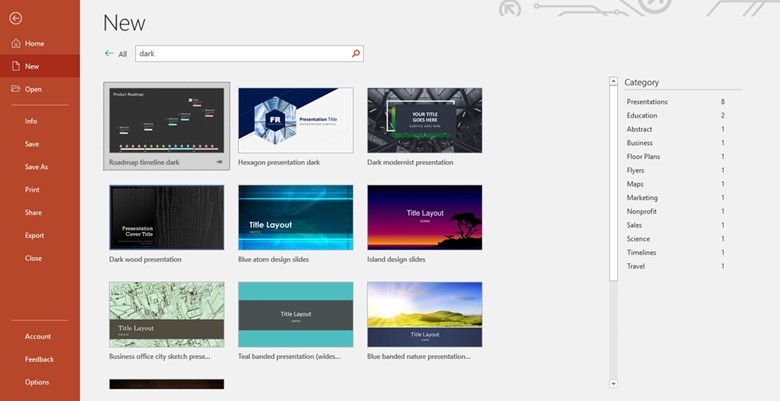
You can then select from the display or use the Category search function on the right-hand side.
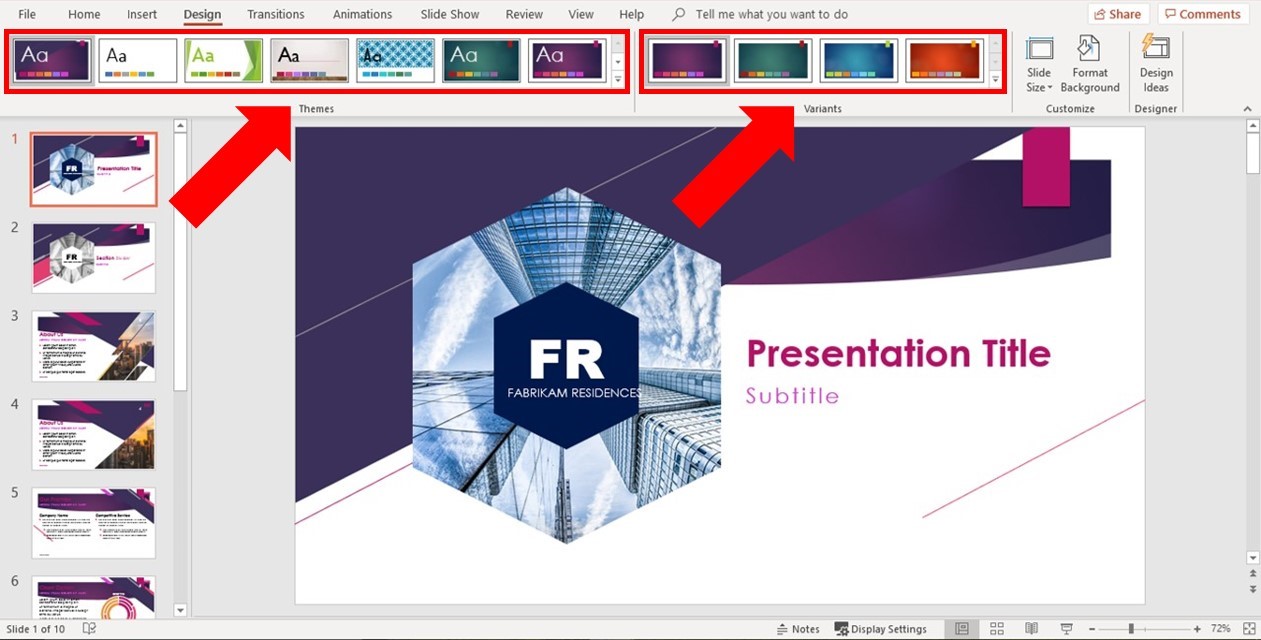
Once you find a background you like, you can then change the Theme or Variant in the PowerPoint Design tab.
This gives you more options to play around with for your template.
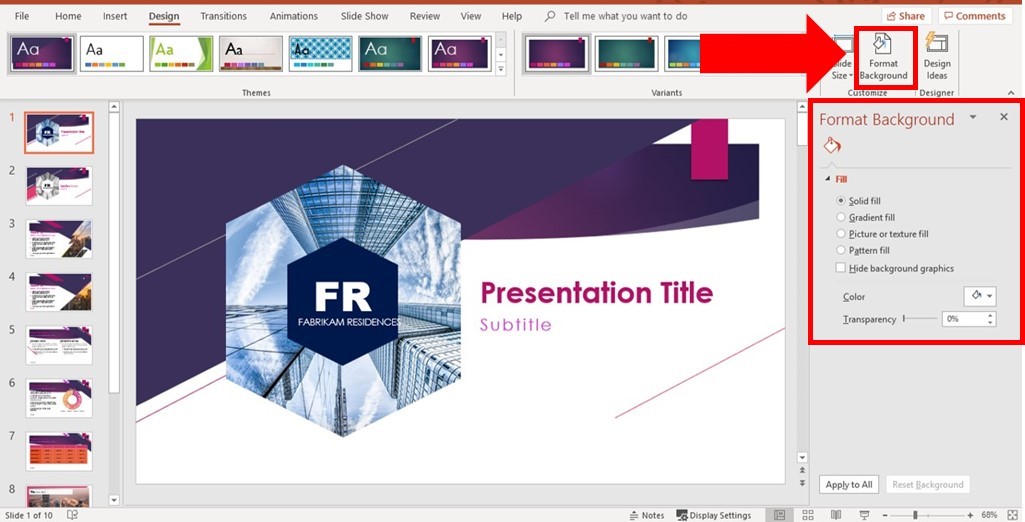
You can also open up the Format Background dialog box to change the background style of your slides.
Where to download PowerPoint backgrounds
Because slide backgrounds can be any number of things, there’s no one place to go to download them.
There are plenty of sites that have literally thousands of free backgrounds you can download for your slides, however, the downside is that most of the designs are unattractive, very basic and cheesy.
That’s why our recommendation is to make your own backgrounds and keep them simple.
For a list of our favorite places to download free images and graphics to create your own presentation backgrounds, see our resource guide here.
If instead you are looking to just download a background for your presentation, below are two of our favorite places for finding free backgrounds for your slides.
Resource #1: Presentation Magazine
These are by far the best pre-built PowerPoint backgrounds you’ll find on the web, with modern, stylish, and simple options to choose from.
Presentation Magazine have well over 45 thousand backgrounds to choose from. You can easily find what you’re looking for from the design menu on the left hand side.
Click on the desired background and you’ll see the background cover page, inside page and details of the matching color scheme.
All of the files can be downloaded in PowerPoint format via a download link beneath the example slides.
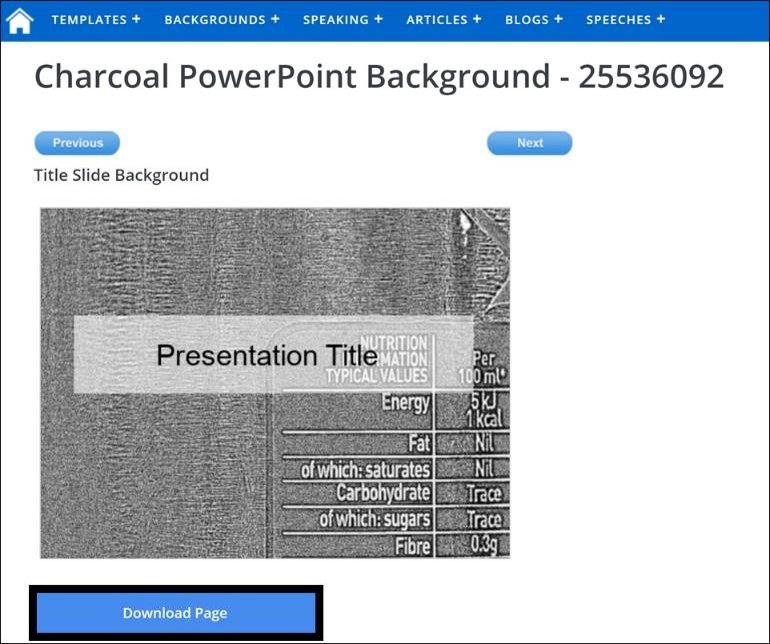
Below you can see an example of what the Charcoal PowerPoint background looks like, with the download page beneath the image.
Pros
- Wide variety of backgrounds
- Backgrounds are categorized well and easy to search
- The background image is provided with 2 variations: the image by itself and then with a white overlay to make it easy to place content on top of the background
Cons
- No ratings or reviews of their backgrounds
Things to keep in mind
- When you download the PowerPoint background, you get a PowerPoint file with several slides in it, demonstrating the use of the background in a presentation.
- If you want to grab the background image, you’ll need to go into the Slide Master View to select the image.
Resource #2: Free PPT Backgrounds
As its name suggests, Free PPT Backgrounds offers a wide variety of decent (and free) backgrounds for you to download. It’s a fairly basic site but there are lots of options to choose from.
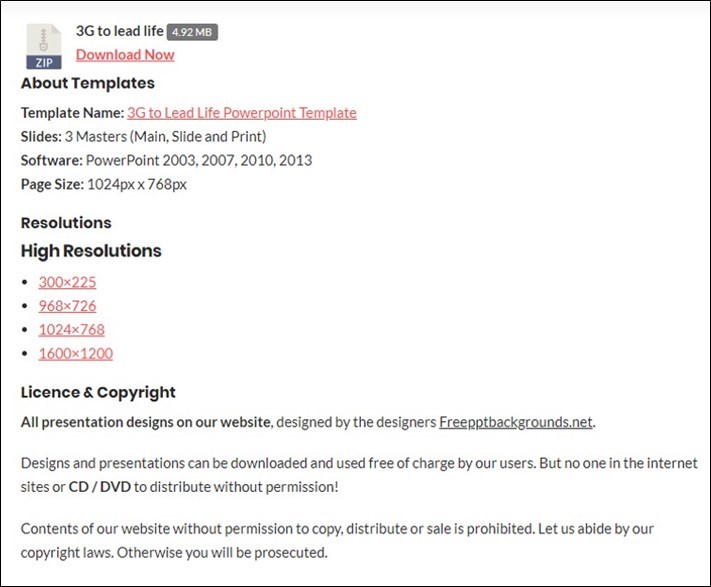
Search by category, color or browse by scrolling through all 68 pages. Once you do find what you’re looking for, at the bottom of the page you’ll see all the download information.
Pros
- Detailed download information
- Option to download in different resolutions
- Most backgrounds come in 3 different variations, for different slide layout types
- Full-size previews
Cons
- Warning: The PowerPoint file that comes in the download file has the backgrounds applied to a different template and the image isn’t selectable (you’ll need to use the JPEG files in the download file)
- A lot of ads that look very similar to download buttons - be careful!
- No ratings or reviews of backgrounds
Resource #3: Slide Team
While almost all the backgrounds that are available for free are incredibly cheesy, there are a few gems on Slide Team if you’re willing to search through all 950 backgrounds for them. Keep in mind that most of the good backgrounds are only available for purchase.
Slide Team has a fairly easy to use interface and you can change the display to show up to 80 backgrounds at a time. You can also change to view by default or by the newest designs.
The only annoying thing is that you will have to create an account or sign up via Google or Facebook in order to download designs. It’s free, but another step you have to keep in mind.
The free background downloads do not give you access to the background image - only to a slide where the background is set (to get access to the picture, you’ll need to follow these steps to )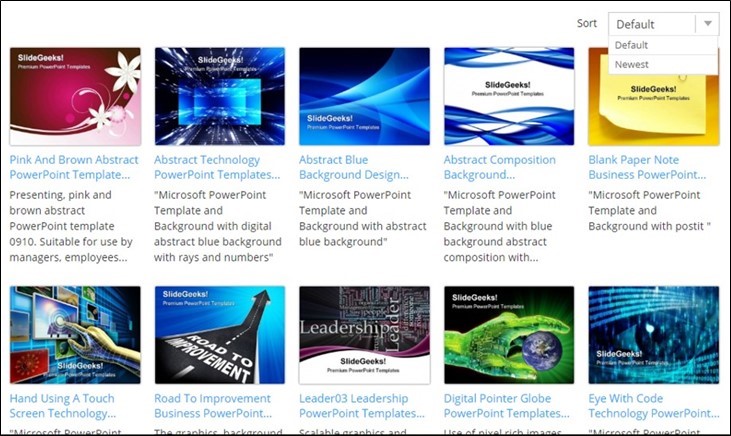
Pros
- Easy to use interface
- Wide variety of backgrounds
Cons
- Have to create an account to download
- Most decent backgrounds are for sale only
- The free background downloads do not give you access to the background image - only to a slide where the background is set (to get access to the picture, you’ll need to follow these steps furtherbelow to break it out)
*Warning: Most of the free backgrounds you find online for PowerPoint are unattractive and cheesy.
That’s why we recommend learning how to create your own backgrounds and keeping them simple.
How to insert PowerPoint backgrounds
Inserting backgrounds into your presentation is easy, but there are a couple things to be aware of.
First, you need to know where you want the background of your presentation to go, so that you know where to place it:
- Single slide backgrounds
- Multiple slide backgrounds
- All your slides backgrounds
Once you know where it goes, here’s where you’ll want to insert your background.
If you have a Microsoft Office 365 Subscription, you can also use PowerPoint designer to quickly create PowerPoint backgrounds. See video below
Link nội dung: https://melodious.edu.vn/powerpoint-background-a96997.html