
Google Slides
Like any document, it is easiest to make a Google Slides presentation accessible when you plan to do so from the start.
Use Pre-existing Slide Layouts and Master SlidesAdding New SlidesSlide TitlesText Equivalents with Alt TextCreating Accessible TablesProvide Descriptive HyperlinksUse Comments and SuggestionsRun an Accessibility CheckCheck Reading OrderConverting Google SlidesAdditional Resources
Use Pre-existing Slide Layouts and Master Slides
Use preset slide layouts whenever possible, as this helps with reading order. The slides have pre-set font and paragraph styles, but these can be modified. Rather than changing a style for each slide, a default can be set for the entire presentation.
- From the main ribbon, select Theme
- Choose a theme you would like to work with
- Select Slide. From here, any change that is made within the master slide view will affect all slides that use that master.

- On the master slide, highlight the text you would like to modify the style for.
- The main menu ribbon allows you to choose how to modify the style:
- Font, font style, color and size of the text
- Text alignment, line spacing before and after paragraphs and list styles
- In this example, we’ll change the font color
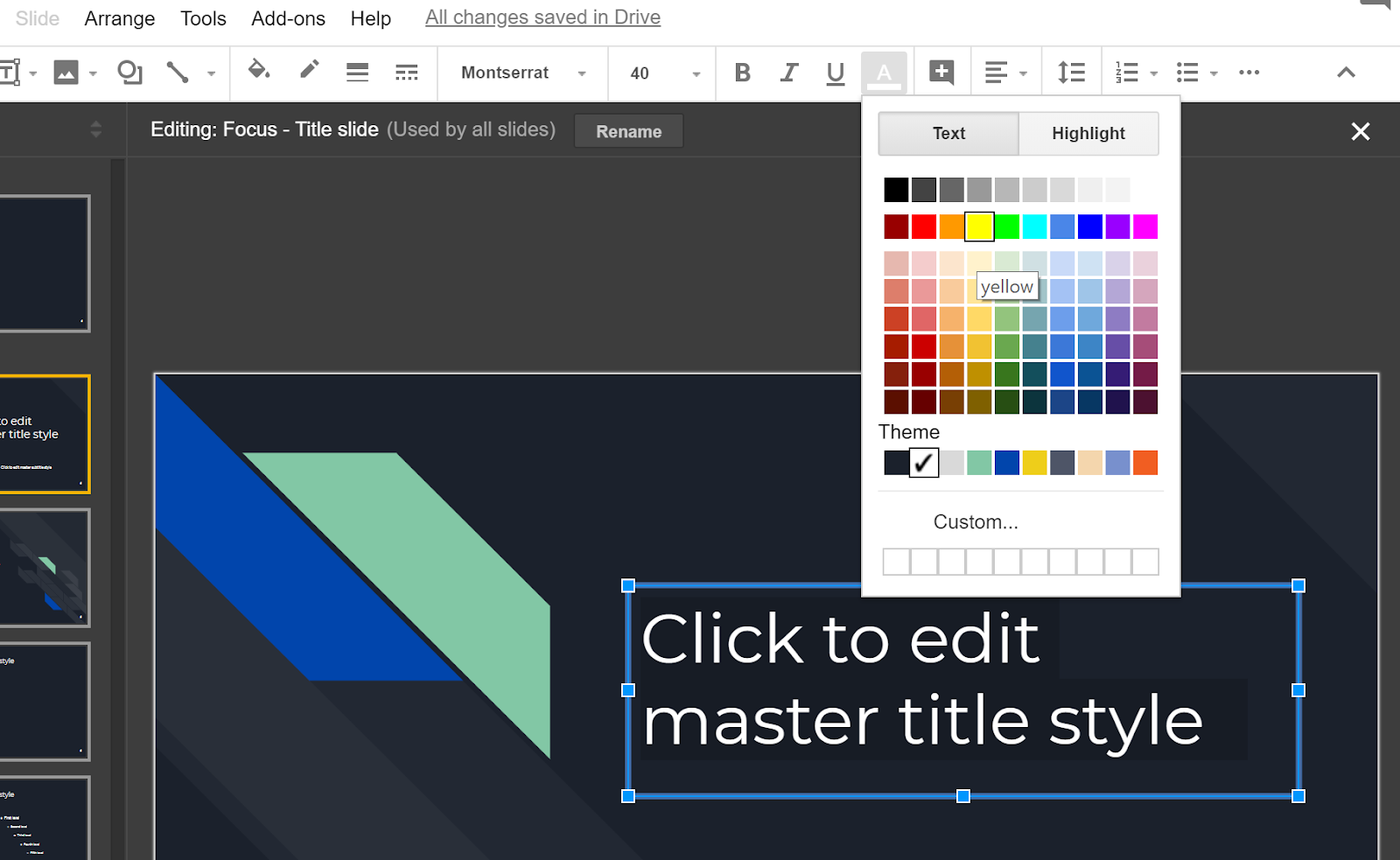
- Close the master slide when finished by activating the X in the top right-hand corner of the slide
Formatting Tips
- Use 24pt type or larger for paragraph or bulleted text (headings should be larger)
- Don’t use more than one font.
- Use a font designed for the screen like Georgia or Verdana, or a Google Slides default font:
- Arial, Raleway, Montserrat, Nunito, Maven Pro, Merriweather, Roboto, Source Code Pro, Oswald, Lato, Proxima Nova, Old Standard TT, Playfair Display, Economica, PT Sans, Open Sans, Alfa Slab One
Back to top
Adding New Slides
- Selecting the dropdown arrow on the New Slide button from the main menu ribbon will allow you to choose what layout to add

Back to top
Slide Titles
Each slide should have a unique slide title, as this helps assistive technology. A textbox that does not contain text will still be detected by assistive technology.
For multiple slides that have similar content, each title should be slightly different. For example, “Features of Campus (1 of 3)” or “Features of Campus (continued)”, etc. Having unique slide titles allows people using assistive technology to determine where they are in the presentation, and also allows them to skip from slide to slide.
Back to top
Text Equivalents with Alt Text
All images in a PowerPoint presentation should have alternative text assigned.
- Select an image in your document.
- Right select the image then choose “Alt Text.” Use CTRL+ALT+Y on the keyboard.
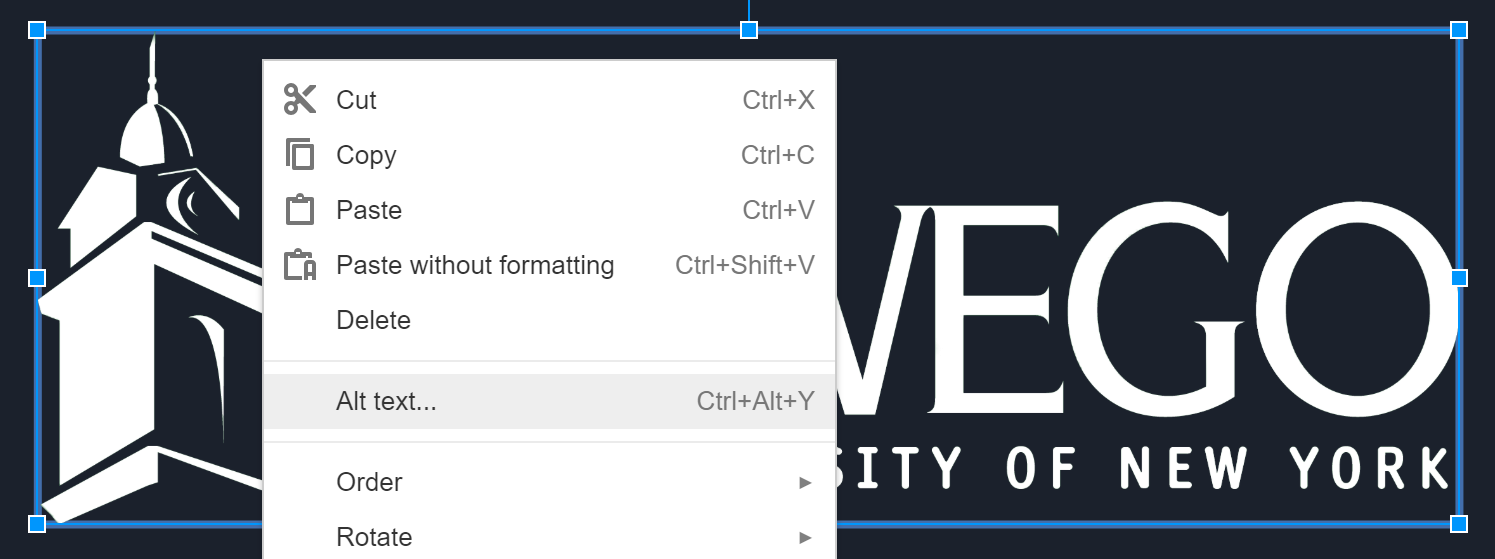
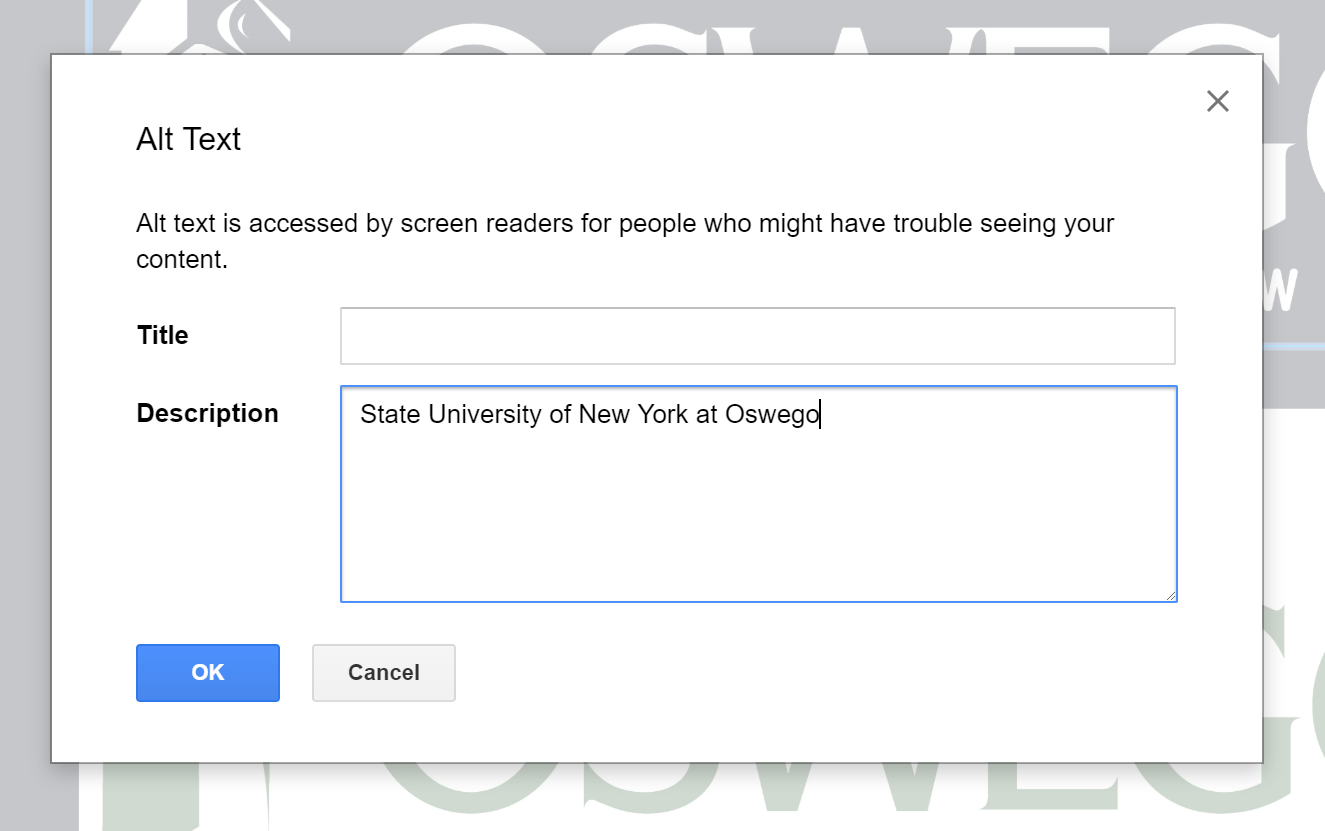
- Provide a full description in the description box. In the case of the SUNY Oswego logo, you would write “State University of New York at Oswego.” If the image is more complex, like a chart, provide a title for the chart in the “Title” box and a full description of the chart in the “Description” box.
Back to top
Creating Accessible Tables
Tables should be used for tabular data, not layout purposes. Screen readers identify the number of columns and rows in a data table, read column and row headers, and provide table navigation. Proper markup allows screen readers to navigate through a table one cell at a time.
- From the main menu, select the Insert tab
- Select Table. A drop-down table and menu will appear.
- Highlight the number of rows and columns you’d like in the table. Click on the grid to place the table in the document.
- Use the tab key to move from cell to cell and enter in all appropriate information
You can style information within the table.
- Highlight the row or cells to be styled
- From the main navigation choose the appropriate font, size, color, or other attributes
Headers must be properly set in a table to allow assistive technology to correctly identify and navigate the table information. Styling within table cells does not define headers. To properly set header rows, see the Run Grackle Slides section.
Back to top
Provide Descriptive Hyperlinks
Hyperlinks in an electronic document should be embedded within the text to aid in readability and accessibility. Imagine you have the sentence “I work at SUNY Oswego” in your document and you want the words SUNY Oswego to link directly to the college’s website.
- Select the text you would like to convert to a hyperlink (in this example, SUNY Oswego).
- Right-click and select “Link” or choose “Link” from the Main Menu.

- You can link to external web pages or to a slide within the document.
- To link to an external page, choose one of the suggested links, or type a URL in the Link field (in this case, http://oswego.edu).
- To link to another slide within the document, choose Slides in this Presentation, and select the slide you want to link to.
- Select “Apply”
Back to top
Use comments and suggestions
Rather than writing notes on presentations, use the comment feature. Screen reader users can use keyboard shortcuts to jump to comments, rather than hunting through the file.
- Select the Add Comment tab from the main menu

- This opens up a comment dialog box. If a specific element on the page is highlighted, the comment will be directly connected to that element.
Back to top
Run an accessibility check
Grackle is the add-on accessibility checker for Google suite applications.
Install Grackle Slides
You only need to install the Grackle Slides accessibility checker once. It will always be available to you in Google Slides once you have installed it. (*Please note, this is different than the Google Docs Grackle checker)
- Select “Get Add-ons” from the Add-ons menu.
- Search “Grackle” in the dialog box.

- Select “+ Free” option to install.
- An alert will pop up alerting you that Grackle would like access to your Google Slides. You will need to confirm that you trust Grackle by selecting “Allow.” This completes the installation.
Run Grackle Slides
Before you distribute an electronic document, run the Grackle Slides accessibility checker to make sure you haven’t overlooked any accessibility details.
- From the Add-ons menu, select Grackle Slides, then launch.

- A sidebar will open up that will identify errors and warnings.
- Activate the down arrow next to the errors, or under the Accessibility Check tab, to expand the details of the errors
- Selecting the individual errors will take you to that specific page in the document to review.
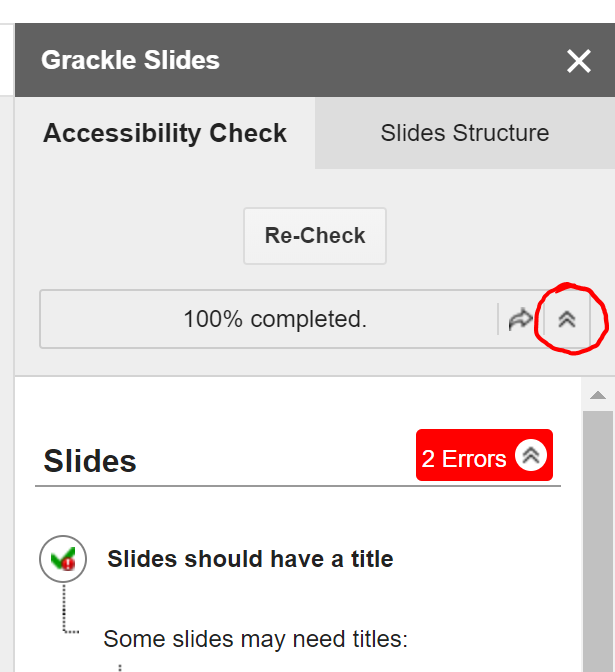

- Missing alt text will be alerted. This tool will give you the option to mark decorative images (that would normally have empty alt text) as “artifacts” so that they are removed from the view of screen readers and other assistive technologies.
- Missing table headers will also be flagged. Click on the "Tag" button associated with a table to define the first row and/or first column as headers.
- Address each issue one at a time throughout the document.
- Select the “Re-Check” button at the top of the window when you have completed each task to receive an updated report.
- Continue to revise until all checks have passed.
Back to top
Check Reading Order
If elements are added to a slide layout, assistive technologies may not read them in the order that is intended. This needs to be checked manually. In the example picture below, the two logos and two bottom text boxes were added to the original slide layout.
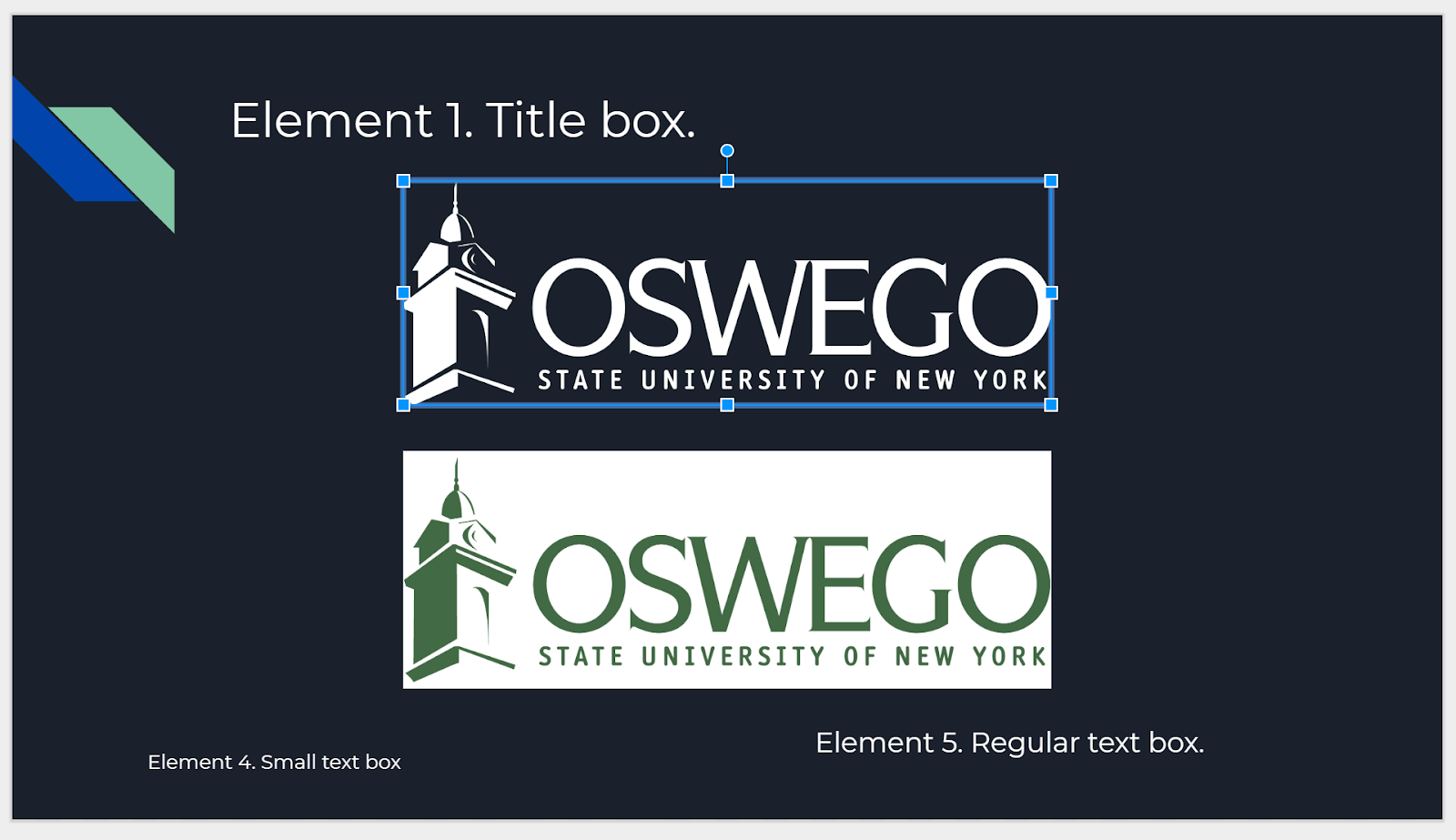
To verify or change the order elements are “seen” on a page:
- Place your cursor on the top, left-most element, then press the Tab key. The order in which the elements are selected is the order in which they appear to a screen reader.
- Elements will be read beginning with the one that is the furthest back on the page and ending with the one that is furthest forward. You can see them listed in order by checking the Slides Structure tab in Grackle Slides.

- To adjust the reading order, select the page element to be changed. In this case, the white logo has been selected. It is also outlined in red under the Slides Structure tab.
- Choose Arrange from the main menu, and hover over Order.

- This brings up four options of how to move the element.
- “Send to back” places the element at the top of the reading order, making it first to be seen by a screen reader.
- “Send to front” places the element bottom of the reading order, making it last to be seen by a screen reader.
- “Send backward” moves the element higher in the reading order.
- “Bring forward” moves the element lower in the reading order.
- Use the Tab key to test the order again.
Back to top
Converting Google Slides
When you convert a Google Slides to another format, like a PDF, it is important to note that your document may not be fully accessible in the new format (even if the Google Slide is). If you convert your document to a PDF, be sure to review and revise that document in Adobe Acrobat Pro with its built-in accessibility checker (See Acrobat Pro tutorial).
Back to top
Additional Resources
- Article, “How to Make Your Presentations Accessible to All” from W3C
- Article, “Make your document or presentation accessible” from Google Support
Link nội dung: https://melodious.edu.vn/google-slide-a92354.html